

-
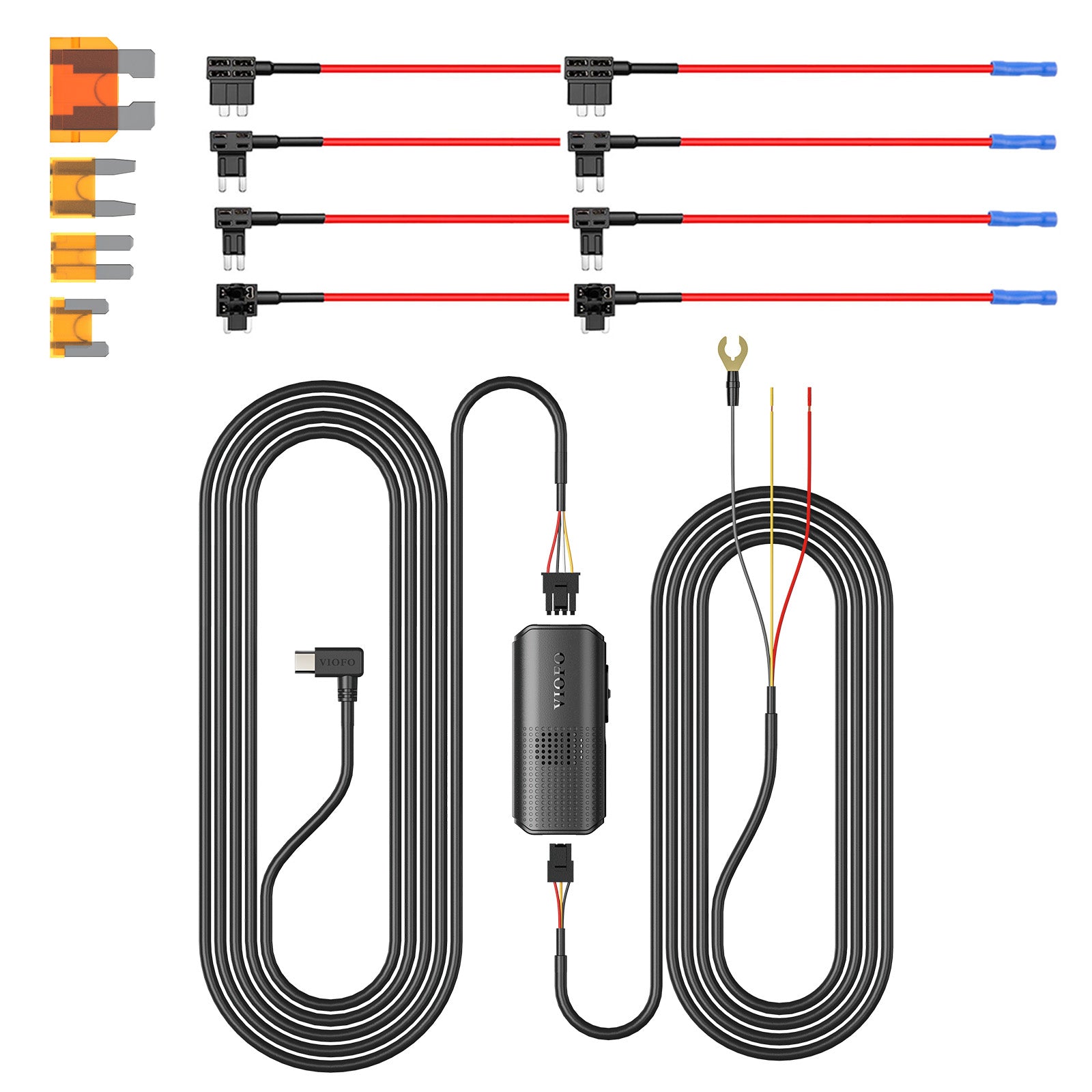
VIOFO Type-C HK6 ACC Hardwire Kit for A3
-
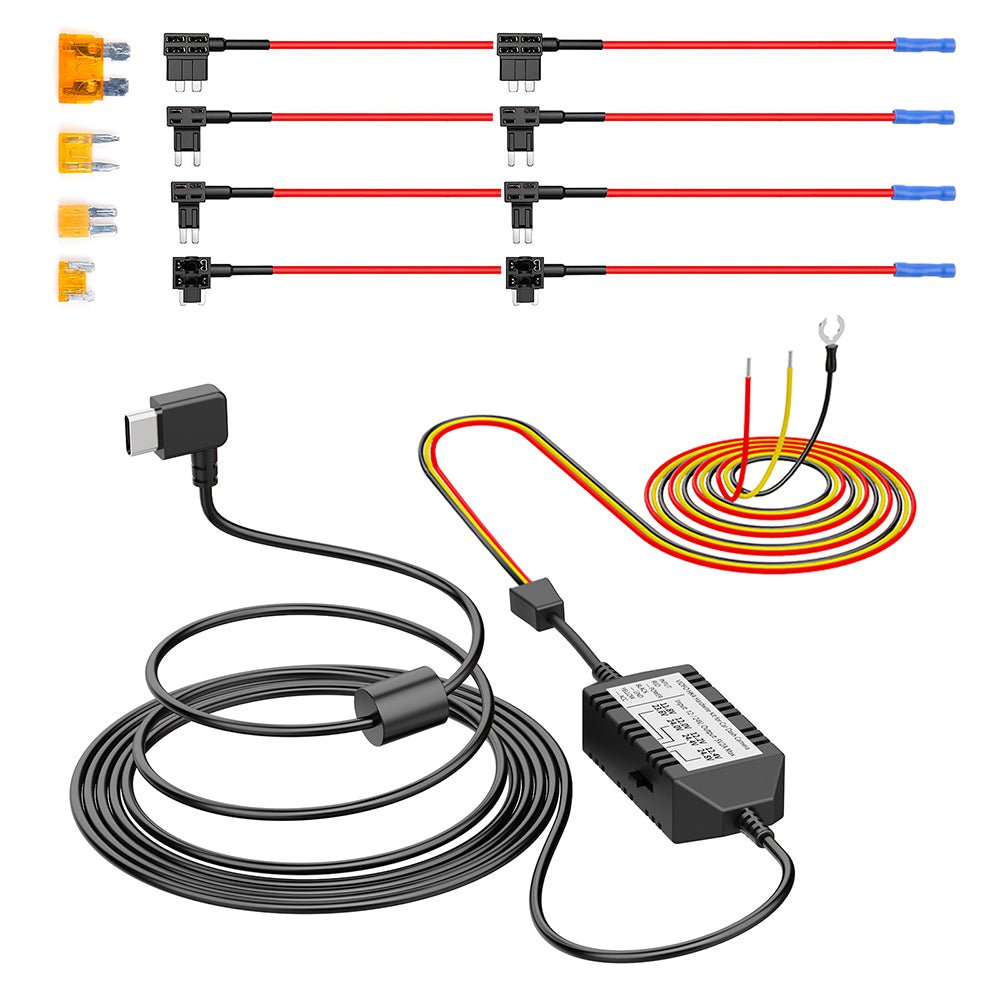
VIOFO Type-C HK4 Hardwire Cable For A119
-

VIOFO Mini HK3 ACC Hardwire Cable For A1
-

VIOFO HK3-C Type-C Hardwire Kit for A139
-

VIOFO Type-C HK5 Hardwire Kit For VS1 Da
-

VIOFO 6M (19.68ft)Type-C HK4 Hardwire Ki
-

2PCS Circuit Fuse Tap with Mini, Micro2,
-

VIOFO 4PCS*2 Packs Circuit Fuse Tap with


-

VIOFO Transparent Plastic Static Windshi
-

Spare Front and Rear Adhesive Pads Stick
-

GPS Module for VIOFO A229 Plus/A229 Pro/
-

Spare Front and Rear Adhesive Pads Stick
-

GPS Module for VIOFO A139/A139 PRO Front
-

Spare Front and Rear Adhesive Pads Stick
-

GPS Module for VIOFO A129/A129 IR/A129 P
-

Rear Mount with Double Adhesive Sticker
-

GPS Module for VIOFO A119V3 Car Dash Cam
-

Spare Front and Rear Adhesive Pads Stick


-

1.8M/2.5M SSD Hard Drive Data Connection
-

VIOFO USB-C to USB-C Charging Cable for
-

VIOFO D6000 Type-C Dual USB Cigarette Ca
-

VIOFO D5000 Type-C Dual USB Cigarette Ch
-

D3000 Dual USB Car Charger for A129 Pro
-

D2000 Dual USB Car Charger for A119V2/A1
-

A119 MINI/A119 MINI 2 Type-C Dual USB Ca
-

D2000/D3000 Mini USB 4M Long Charging Ca
-

VIOFO USB 2.0 Type-C to Type-C Data Cabl
-

Short and Portable USB-A to USB-C Data C


-

VIOFO RF200 1080P Infrared Interior Came
-

VIOFO RE200 2K Rear Camera with 6M Type-
-

VIOFO RC320 1080P Rear Camera with 6M Ja
-
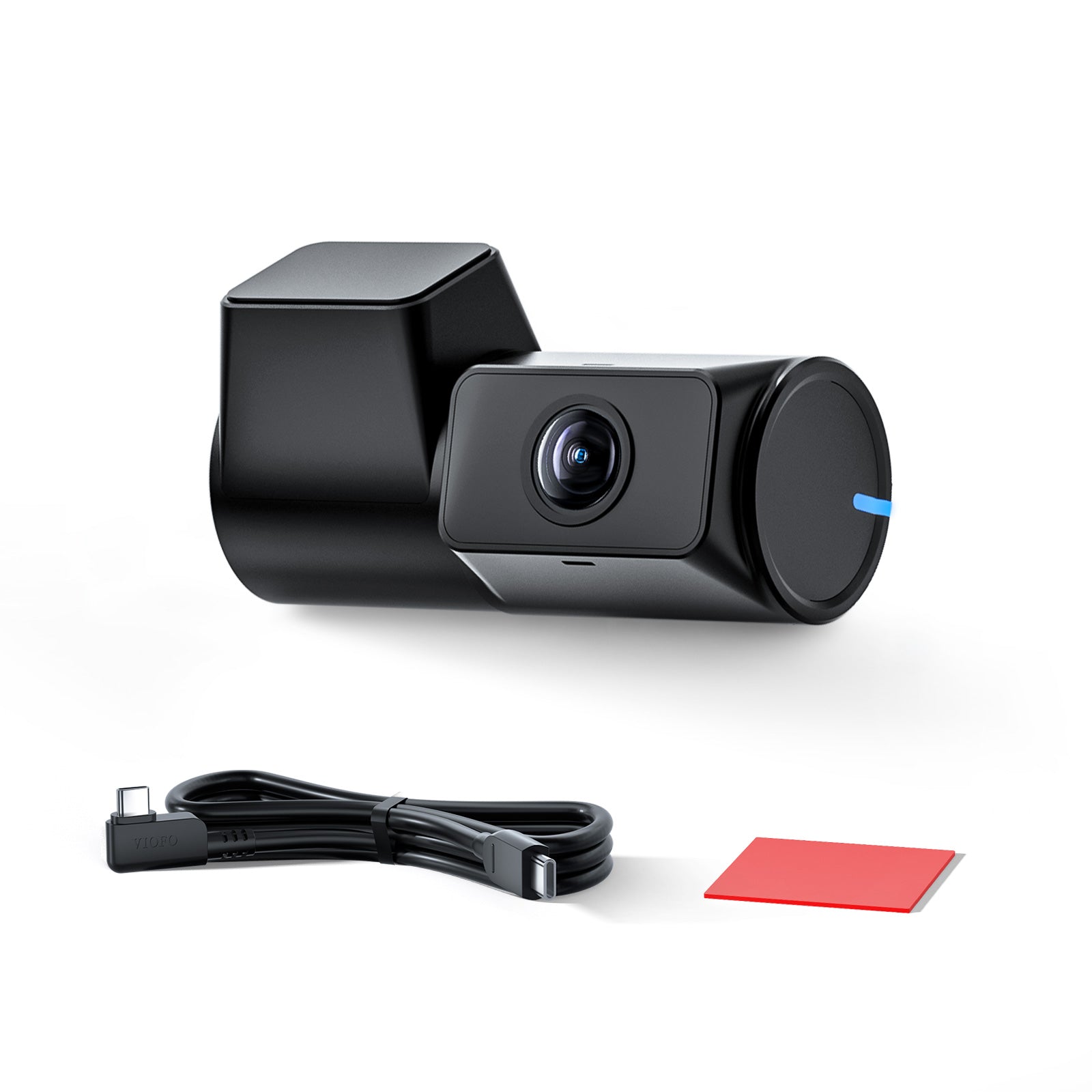
VIOFO RTC300 Telephoto Camera with 0.6M
-
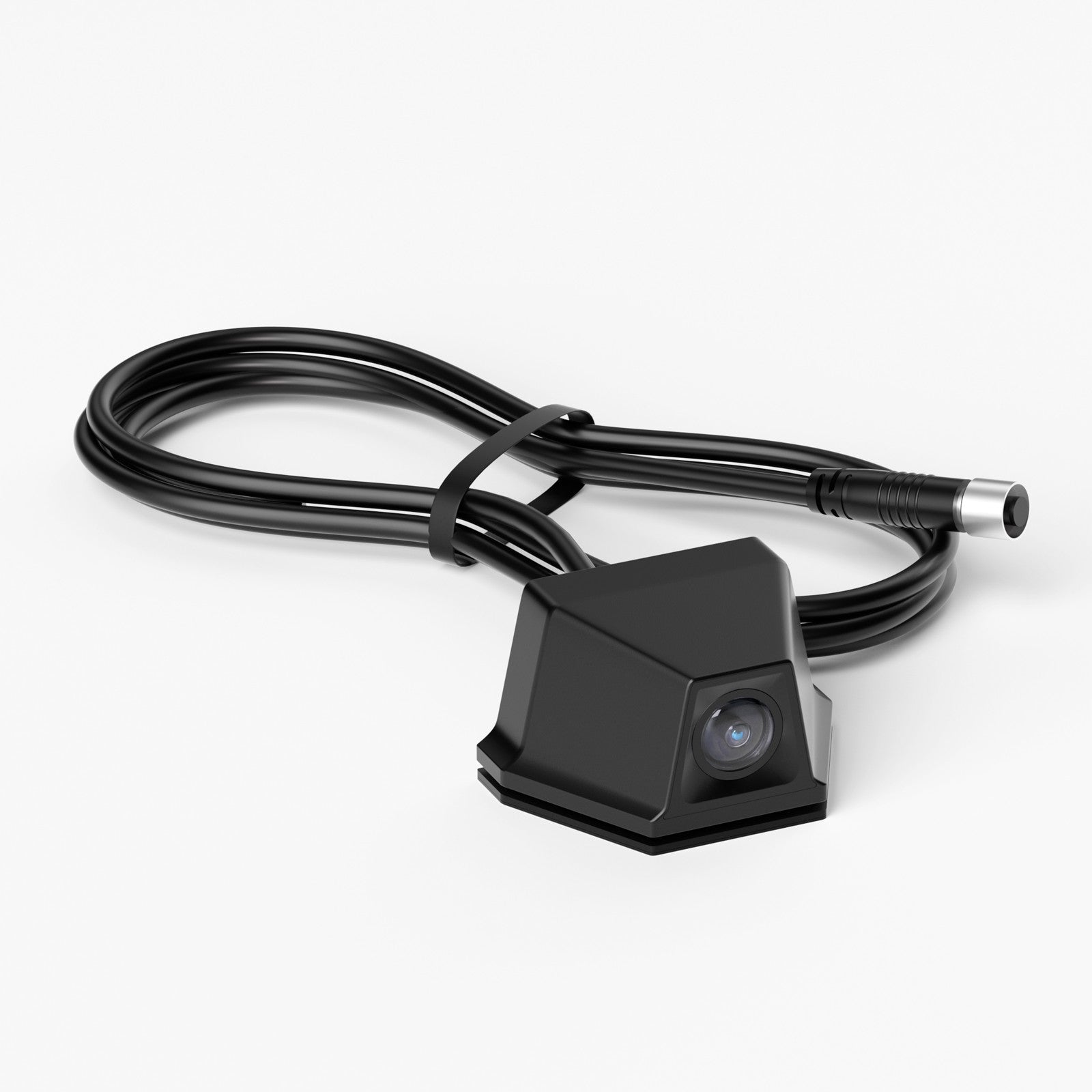
VIOFO RWC200 Waterproof Rear Camera for
-
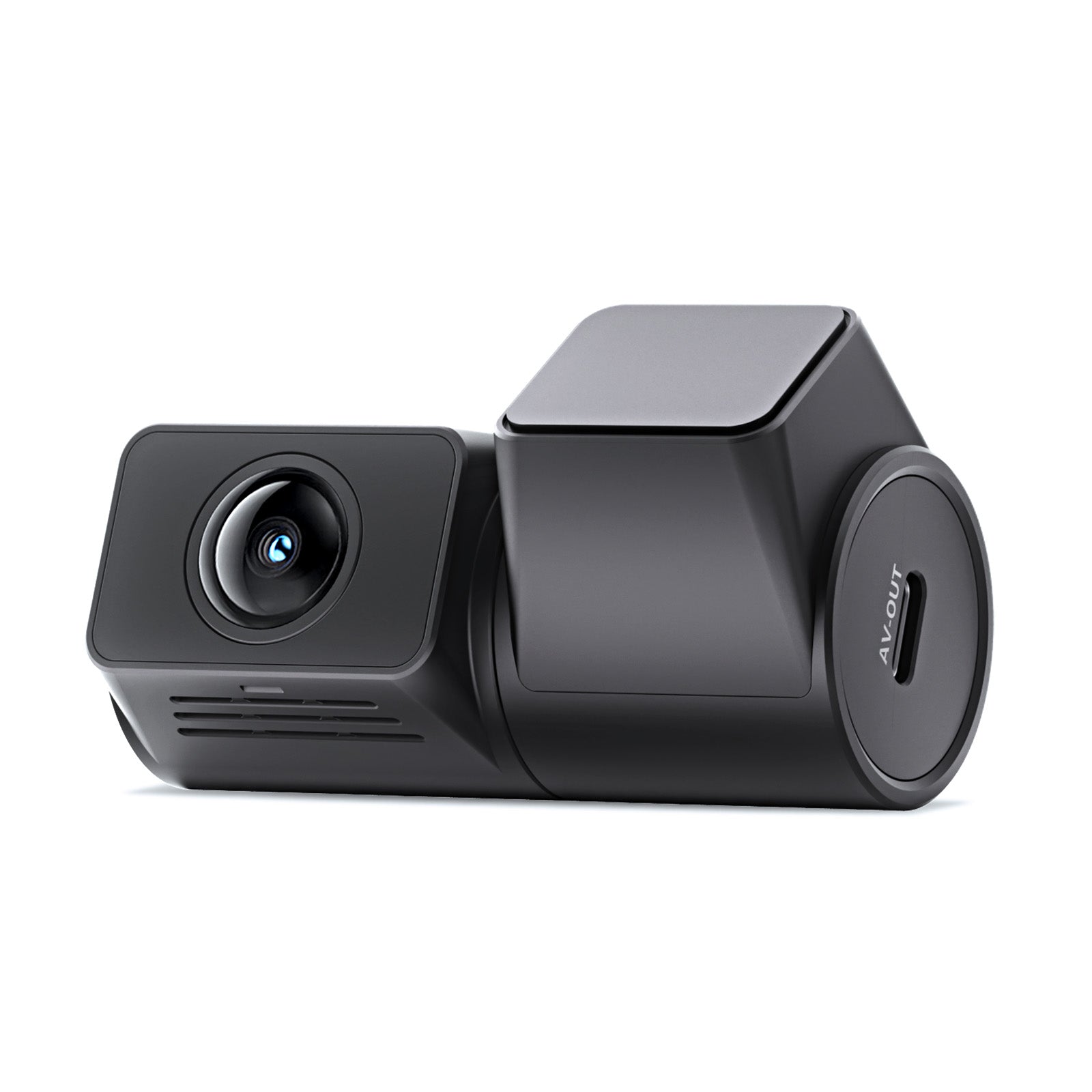
VIOFO RNE800 4K HDR Rear Camera with 6M
-
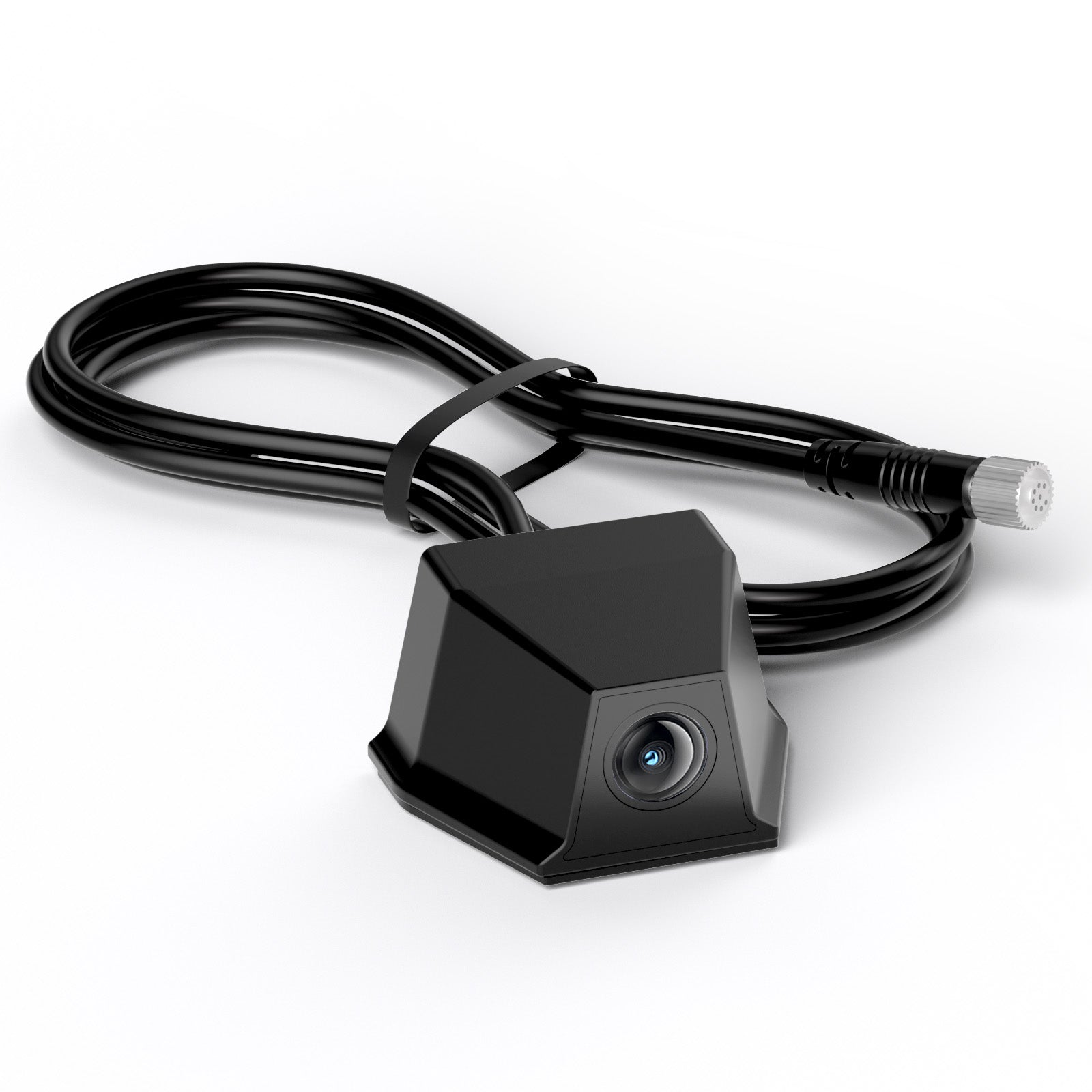
VIOFO RWE800 4K HDR Waterproof Rear Came
-

VIOFO RNF210 1080P Infrared Fisheye Cabi
-

2K HDR Rear Camera with 6M Cable and Adh
-

VIOFO RTC420 2K HDR Telephoto Camera Set


-
-
-
-
VIOFO Series
-
-
-